Darker than yourphone allows.
Screen Dimmer takes your whole screen below Android's lowest brightness, status bar and lock screen included, and never leaves you stuck in the dark.
Android 8.0 and later. Free, with small banner ads inside the app.
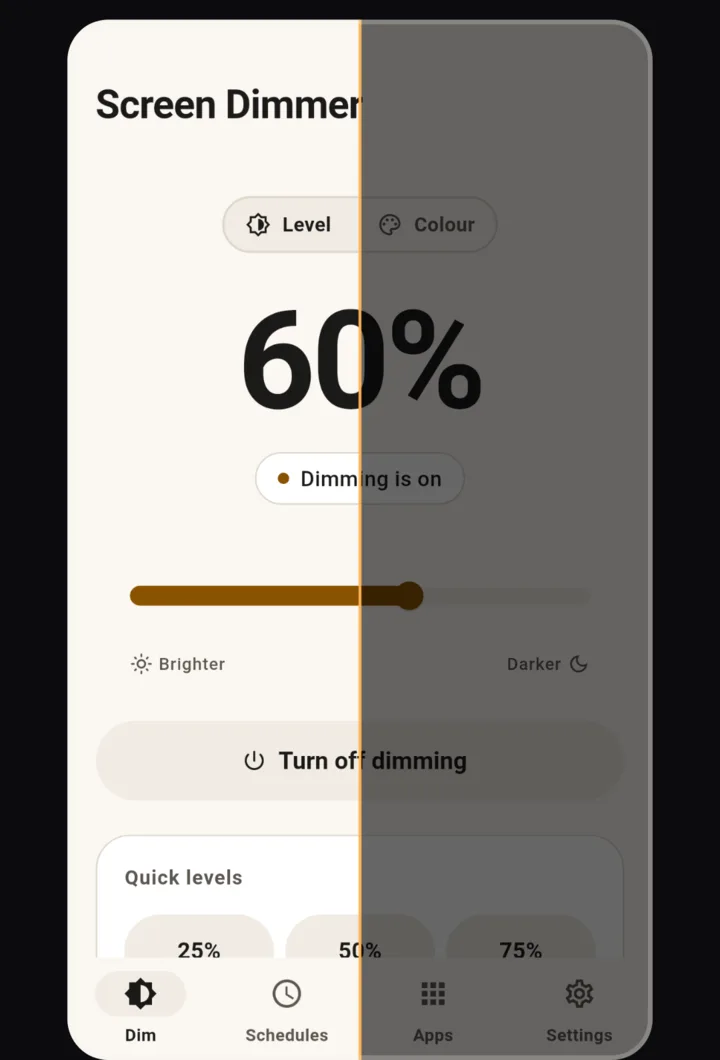
The app's slider, dimming this page. It stops at 95%, as the app does.
Keep this level?
Going back to 60% in 10 seconds.
Dim the status bar and lock screen too.
Full mode dims everything Android shows, down to 95%. Limited mode needs no accessibility access and stops at 80% on Android 12 and later.
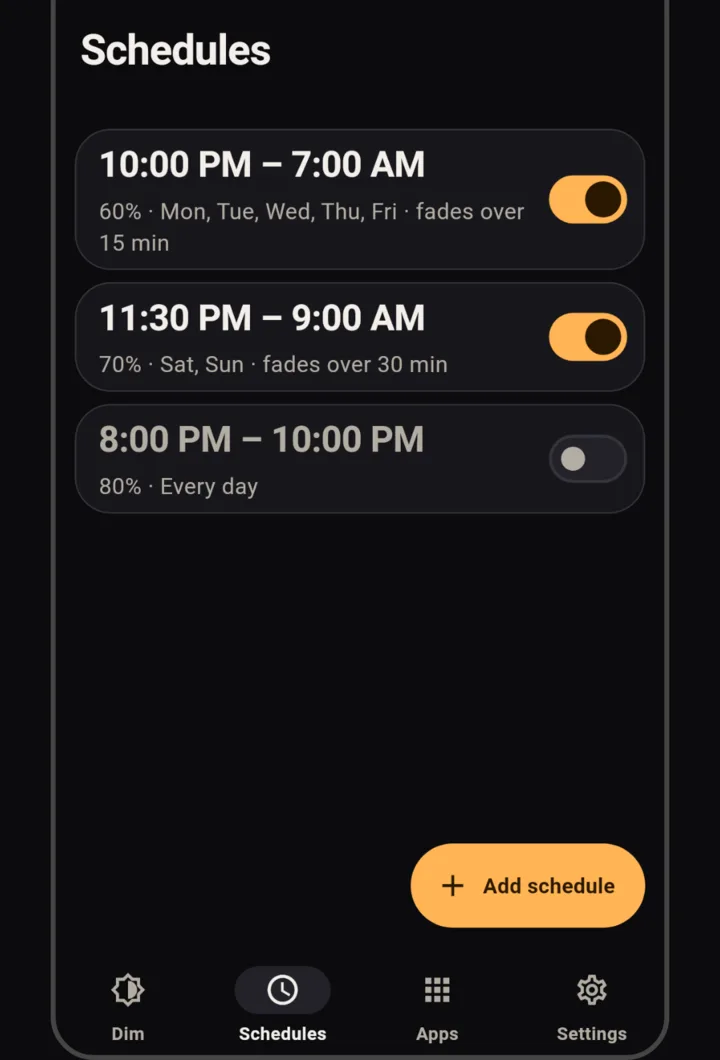
Fade in at ten, out at seven.
Schedules like 22:00 to 07:00 on weekdays, fading over 15 minutes, or from sunset to sunrise where you are.
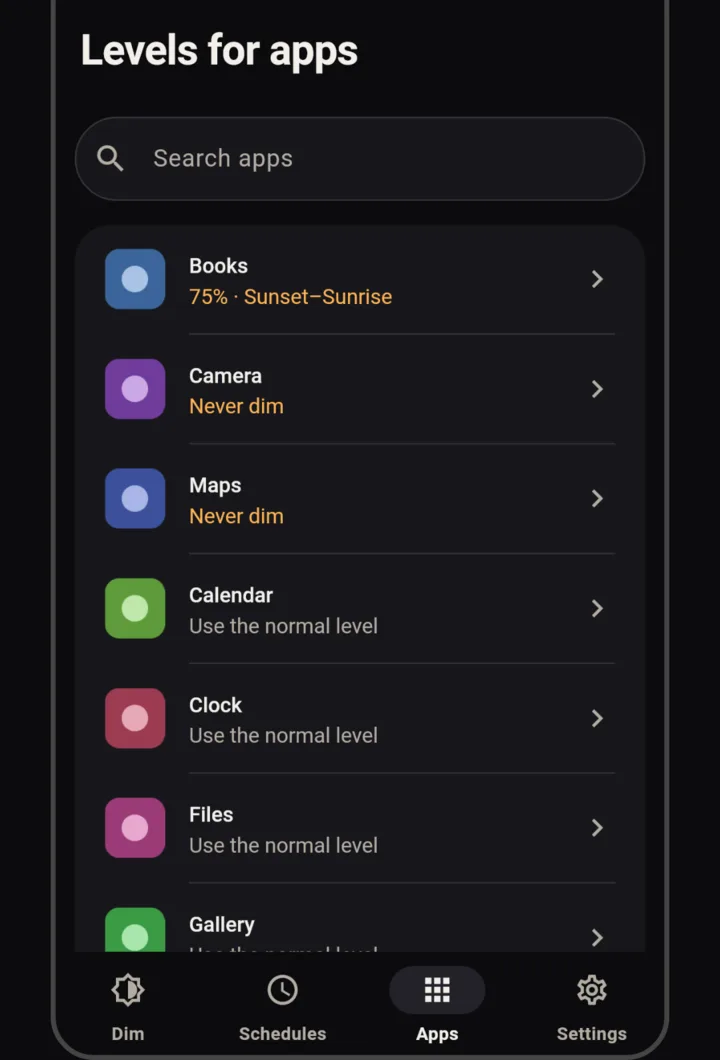
Leave the camera and maps alone.
A level for each app, picked by name and icon: Books at 75%, Camera and Maps never dimmed.
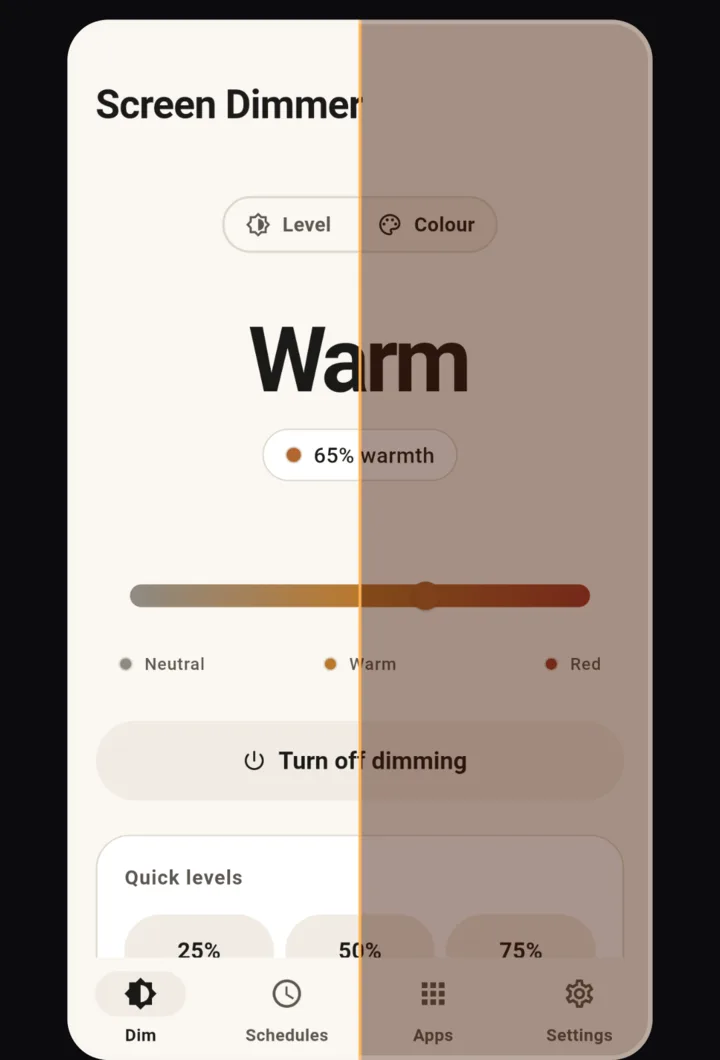
Any warmth, all the way to red.
Pick any colour from neutral through amber to deep red; warmer light cuts blue light as well as brightness. Flicker-free dimming keeps OLED screens at a steady brightness and dims with the layer instead.
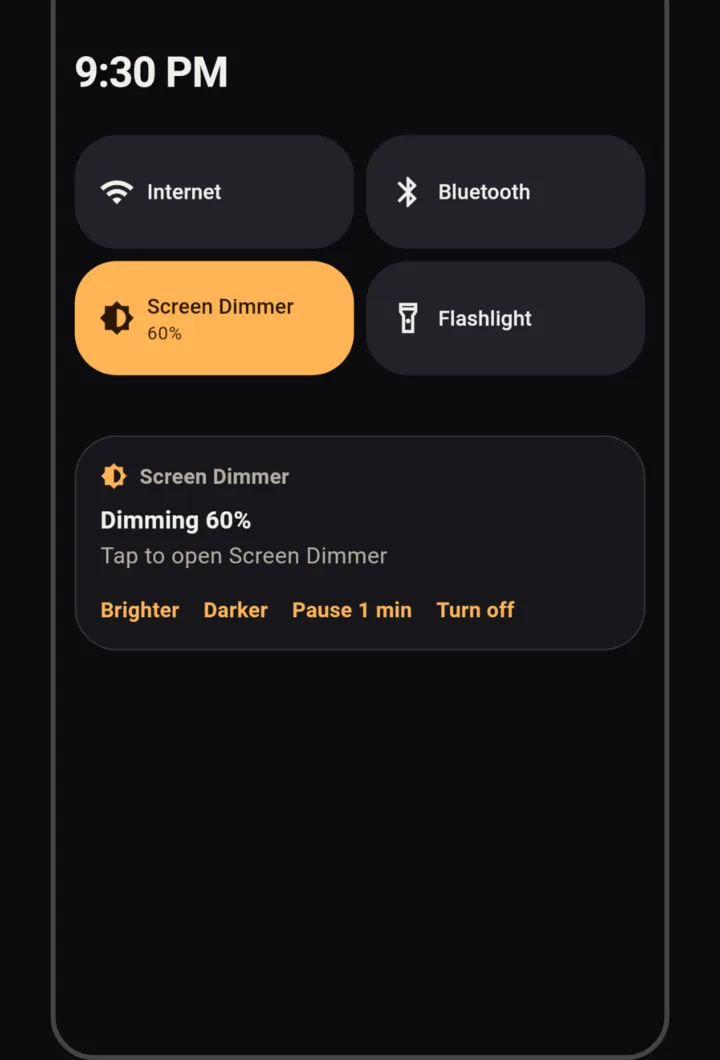
Pause for a minute or two hours.
One tap on 1, 5, 15 or 30 minutes, 1 or 2 hours, or set your own up to 24 hours. Dimming comes back on by itself.
Where you control it
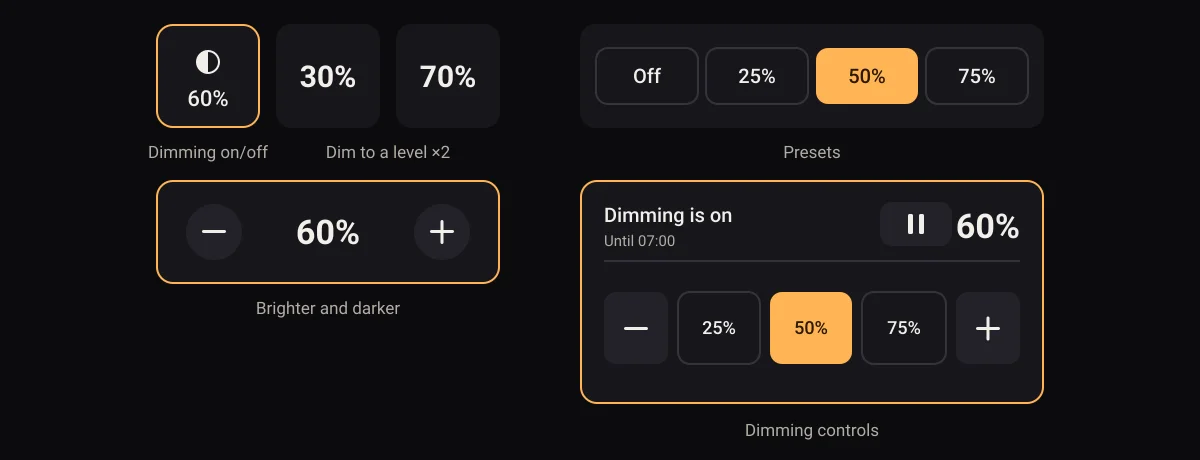
The level, quick levels and the pause menu, on one screen you can use with your thumb in the dark.
Never stuck in the dark
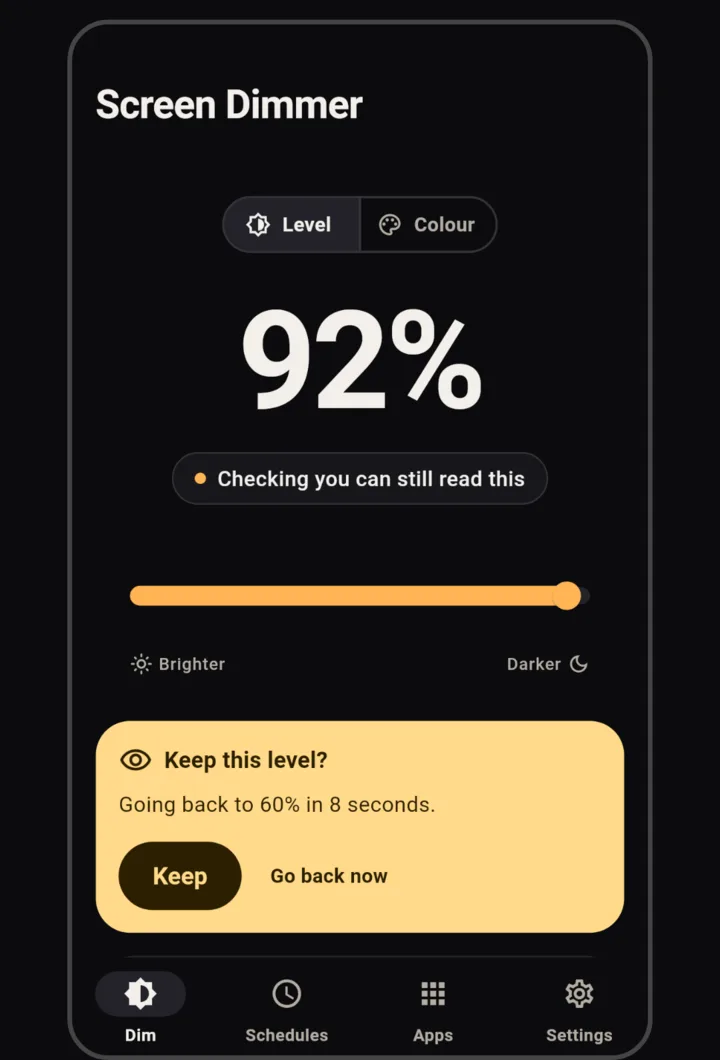
First, go darker than you meant to.
Keep this level?
Going back to 60% in 8 seconds.
Then, if you cannot see to answer, do nothing.
Ten seconds later the level goes back by itself. Each time you keep a darker level, that becomes the new limit, and dimming never goes past 95% unless you choose to allow more.
Still too dark? Turn the screen off and on three times.
- Off
- On
- Off
- On
- Off
- On
Dimming switched off: the screen was turned off and on three times.
Dimming is off
Holding both volume keys works too, through Android's own accessibility shortcut.
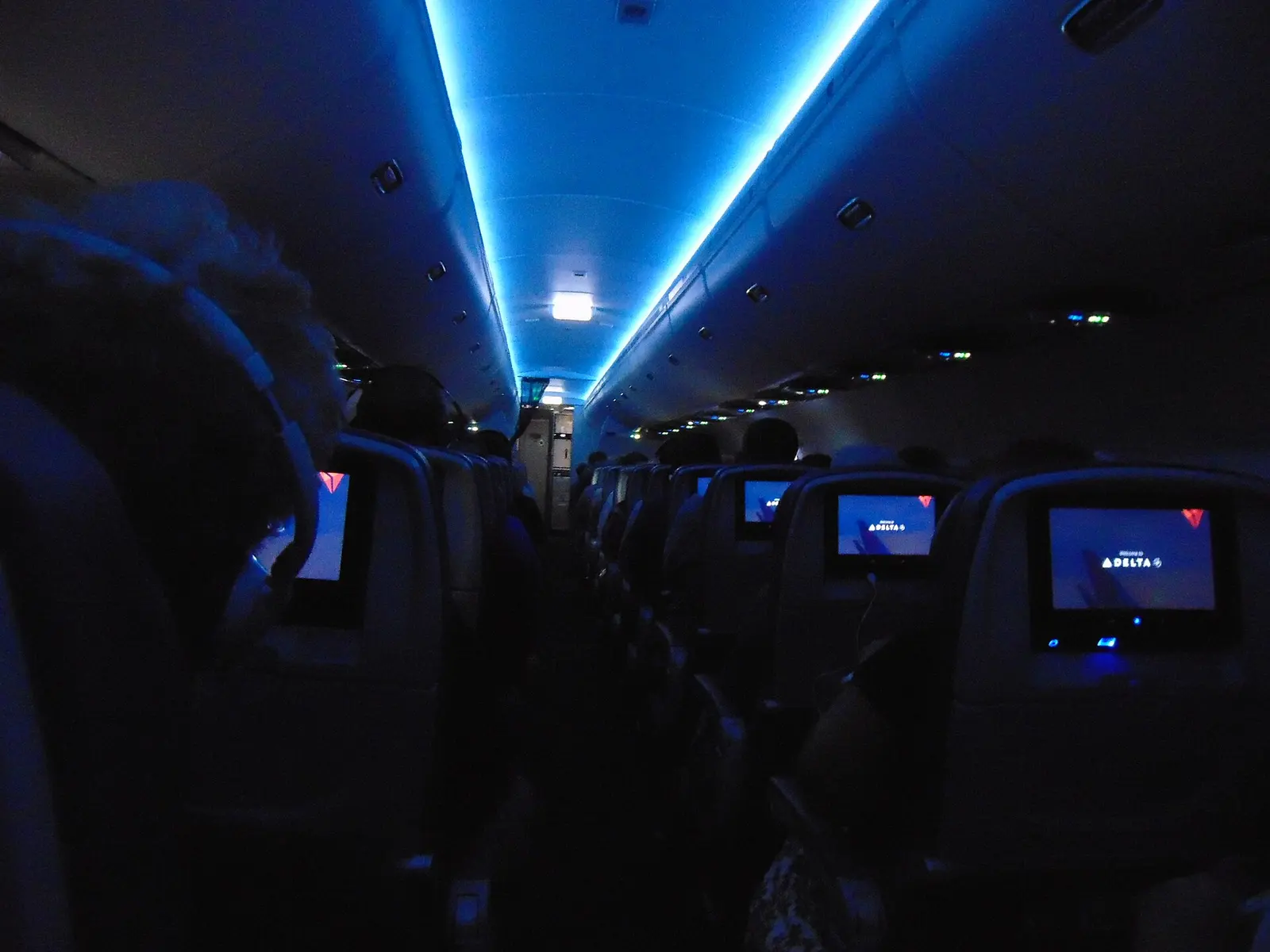
For the moments the room is dark

Ads that stay in their place
Screen Dimmer is free because of small banner ads. This is exactly where they appear and what the app shares. The privacy policy has the detail, and you can ask us to delete your data.
- Ads only inside the app
- Banners on the app's own screens, while you have it open. Never over other apps or the lock screen, and never in the notification, the Quick Settings tile, the widgets or the dark layer.
- Your choice about ads
- Ads come from Google AdMob. In the UK and the EEA the app asks before ads use personal data, and you can change your answer in the app.
- Accessibility access draws the layer
- It draws the dark layer and, only if you set levels for apps, notices which app is open. It never reads what is on your screen, and nothing it sees is used for ads or leaves your phone.
- Analytics only if you agree
- The app asks once whether to share usage analytics and crash reports. Nothing is sent until you say yes, and you can turn it off any time in Settings. It never includes your screen, your apps or your location.
- No account
- Nothing to sign up for. Your levels, schedules and settings stay on your phone.
Questions
Why does it need accessibility access?
It is the only way Android lets an app dim the status bar, the navigation bar and the lock screen. The app explains this before Android's settings screen opens. If you would rather not allow it, choose limited mode.
What if the screen gets too dark to see?
Do nothing: a level darker than any you have kept goes back by itself after ten seconds. You can also turn the screen off and on three times quickly, or hold both volume keys if you have set up Android's accessibility shortcut.
Why are my screenshots dark?
The dark layer is part of what the screen shows, so screenshots include it. Pause from the app, the notification or a widget, take the screenshot, and dimming comes back on by itself.
How long can I pause for?
The pause menu has 1, 5, 15 and 30 minutes, 1 hour and 2 hours, or any length you set up to 24 hours. The notification and widgets pause for the length you used last.
What is limited mode?
Limited mode dims without accessibility access, using Android's "display over other apps" permission instead. On Android 12 and later it stops at 80% and cannot dim the status bar, because Android does not allow more.
Does it work without the internet?
Yes. Dimming, schedules, tints and widgets all work offline. The internet is used to load ads and, only if you agree, to send usage analytics and crash reports.
Which phones does it work on?
Android 8.0 and later, on phones and tablets. There is no iPhone version, because iOS does not let apps dim the whole screen.
Turn it down tonight.
Free on Google Play for Android 8.0 and later, with small banner ads inside the app. The first time you open it, it explains each permission before Android asks.
Turn on dimming
Choose how Screen Dimmer dims. You can switch later in Settings.
Dims everything, including the status bar and lock screen.